Support
Troubleshooting
Most problems have a quick fix. If yours turns out to be stubborn, we'll show you how to gather the details our support team needs. You won't need any tech know-how, promise.
Try these first
These four sort out most of what people email us about. Work down the list and try the game after each one.
Restart the game and Steam. Quit AirMech, then click Steam in the top-left corner of the Steam window and choose Exit. Open Steam again and relaunch. It sounds too easy, but it works more often than you'd think.
Verify the game files. Steam checks every game file and re-downloads any that are damaged. Your account and progress stay exactly as they are.
- In your Steam library, right-click AirMech and choose Properties.
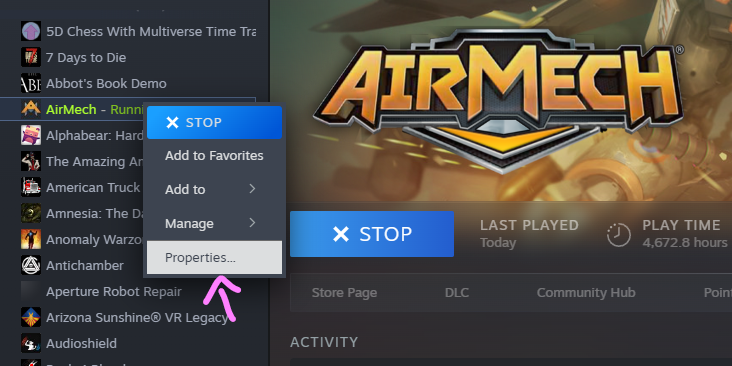
Right-click AirMech in your Steam library and choose Properties. - Pick Installed Files on the left.
- Click Verify integrity of game files and wait for it to finish.
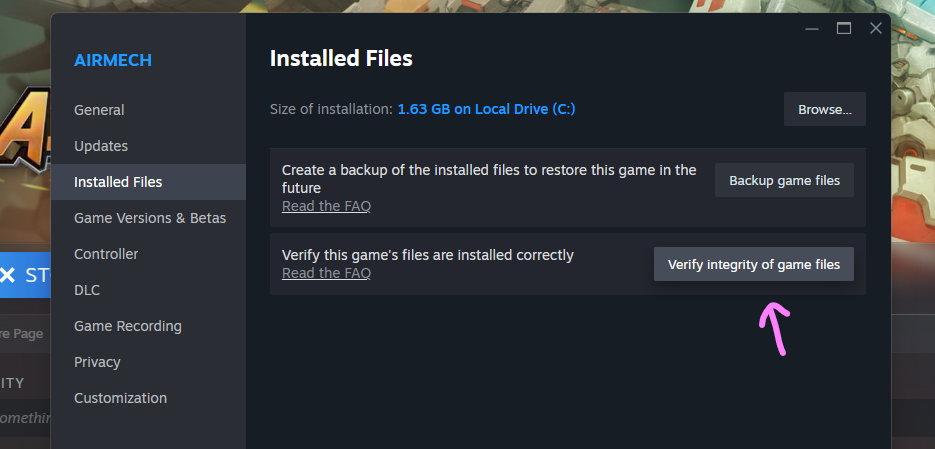
Verify integrity of game files is on the Installed Files tab. - In your Steam library, right-click AirMech and choose Properties.
Update your graphics driver. Get the latest one from the company that made your graphics card (NVIDIA, AMD, or Intel) and restart your PC. If the trouble started right after a driver update, do the opposite and put the previous version back from the same site.
Close overlays and capture tools. Discord, OBS, the NVIDIA and AMD overlays, RGB lighting and tuning apps, screen recorders: they all hook into games, and every so often one of them trips something up. Close them and try again.
If the game crashed
When AirMech crashes, it saves a crash report on your PC and sends it to us the next time you launch the game. So after a crash, the most helpful thing you can do is open the game again.
Some crashes also open a page on this site with an error number and a short message. If you email us, copy both of those in.
A crash report tells us about the crash itself, your graphics card, and your version of Windows. Your password, your chat, and your files stay out of it.
Get a startup log
If the game won't start, closes straight away, or just shows a black screen, we might ask you for a startup log. The game can write one for you. Setting it up takes about two minutes, and you can switch it off again afterwards.
Part 1: Turn the log on
Open Steam and click Library at the top.
Find AirMech in the list on the left, right-click it, and choose Properties.
Right-click AirMech in your Steam library and choose Properties. A window opens on the General tab. You're looking for the box labelled Launch Options.
Click inside the box and type this exactly, slash included:
/startupdiag
Already something in there? Leave it, add a space at the end, and type it after that.
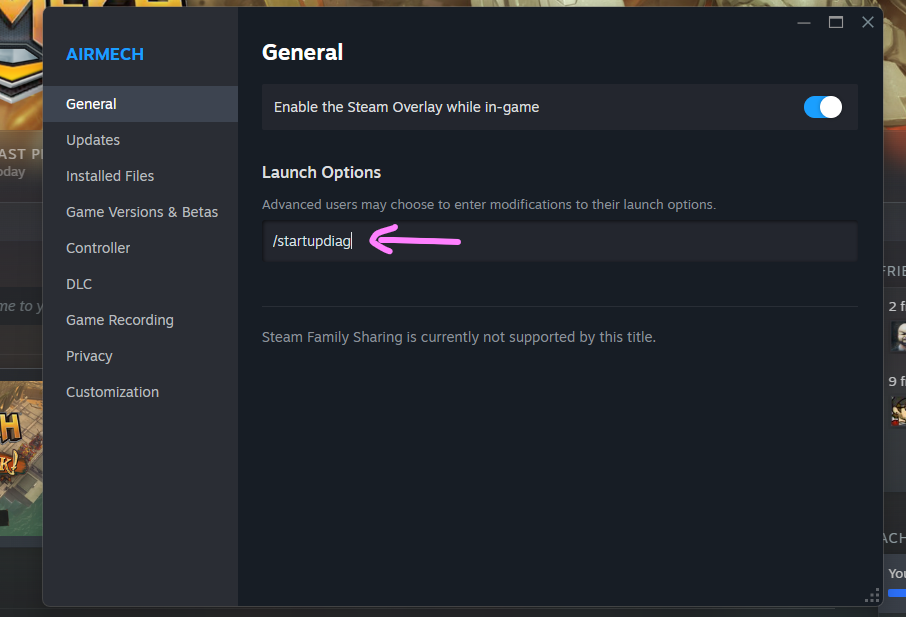
Type /startupdiag into the Launch Options box on the General tab. Close the Properties window. Don't go hunting for a Save button, because there isn't one. Steam keeps the change as soon as you close it.
Launch AirMech once. If it makes it to the main menu, quit from there. If it doesn't start at all, that's fine: the log still catches everything up to the moment it failed.
Part 2: Find the log file
Open File Explorer. Pressing the Windows key and E together is the quickest way.
Click once in the address bar at the top of the window, where the folder path is shown. That highlights the text.
Copy this line, paste it into the address bar, and press Enter:
%LOCALAPPDATA%\Carbon\AirMechSteam
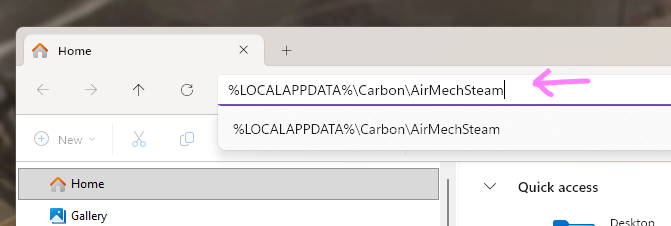
Paste the folder path into the address bar and press Enter. In the folder that opens, you'll see a few other folders and a file called startup-diagnostic.log. That's the one we want.
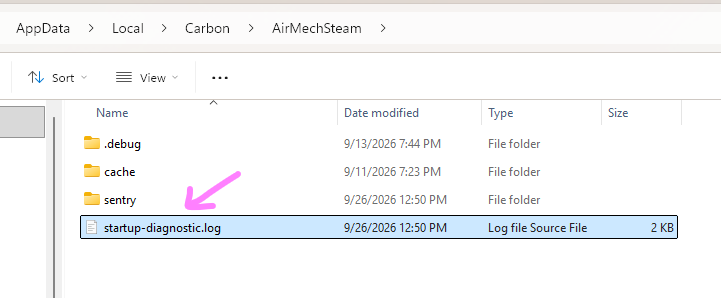
That's the one: startup-diagnostic.log. Attach it to your email to us. With most email programs you can just drag the file from the folder into your message.
Part 3: Turn the log off again
Once you've sent us the file, go back to Properties in Steam and delete /startupdiag from the Launch Options box. Leaving it in won't hurt anything. It just means every launch writes a fresh log over the last one.
The log is small, and it only covers how the game started up: the build number, the graphics cards Windows reported, which one the game picked, and any errors. Your name, your computer's name, what you type, and your chat never go in it.
Save a system report
For graphics and driver problems, a Windows system report tells us exactly what hardware and drivers you're running. It's a few clicks.
Press the Windows key, type dxdiag, and press Enter. If Windows asks about checking for signed drivers, choose Yes.
Give the green progress bar in the bottom-left corner a moment to fill up.
Click Save All Information at the bottom and save the file somewhere easy to find, like your Desktop. It'll be called DxDiag.txt.
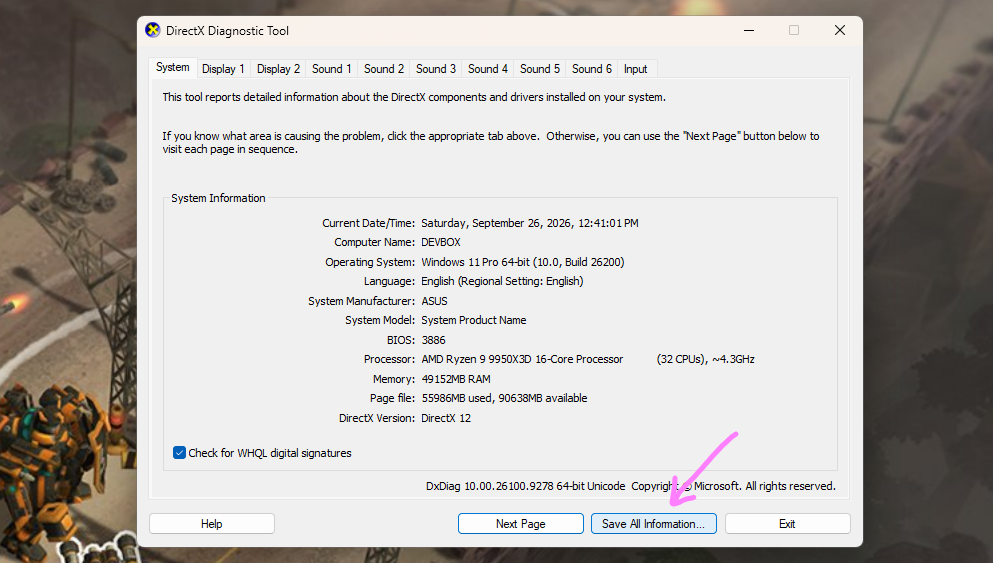
Save All Information gives you a DxDiag.txt file to attach to your email. Attach DxDiag.txt to your email and you're done.
Common problems
The game won't start, or closes right away
- Start with the quick fixes above. Verifying the game files is the big one here.
- Antivirus programs sometimes quarantine game files by mistake. AirMech's files are digitally signed by Carbon Games Inc., so if yours pulled one, restore it. Then add the game folder to your antivirus exclusions and verify the game files again.
- AirMech has to be launched from Steam, so check that Steam is running and you're signed in.
- Still stuck? Get a startup log and send it to us.
Black screen or graphics problems
- Update your graphics driver from NVIDIA, AMD, or Intel, then restart your PC.
- Lots of laptops have two graphics chips, and you want the game on the stronger one. Open Windows Settings, go to System, then Display, then Graphics, find AirMech, and set it to High performance.
- Close any overlays and capture tools.
- Drop the resolution or graphics quality in the game's options and see if that helps.
Crashes when the Steam overlay opens
- You can switch the overlay off for just AirMech. Right-click it in your library, choose Properties, and untick "Enable the Steam Overlay while in-game" on the General tab.
Controller not detected
- Plug the controller in before you launch the game.
- Or, with the game already running, unplug it and plug it back in. The game looks for controllers again when you do.
- Still nothing? In Steam, open AirMech's Properties, go to Controller, and try the different Steam Input options.
Lag, high ping, or disconnects
- Turn off any VPN or "game accelerator" software. They reroute your connection, and that can land you on a server a long way from home.
- Plug in with a cable if you can. Wi-Fi is the most common cause of stutter in matches.
- Make sure your firewall isn't blocking AirMech or Steam.
Purchases or account problems
- Restart the game. Purchases usually appear once it reconnects.
- Still missing? Email us with your in-game name and roughly when you bought it. Please never send your password or any sign-in code.
Send it to us
Email support@carbongames.com. Anything from this list helps us sort things out faster:
- Your in-game name. Not your password, ever.
- What you were doing when it went wrong, and roughly when (with your time zone).
- The error number and message, if the game opened a crash page.
- The startup log if the game wouldn't start.
- For graphics problems, DxDiag.txt.